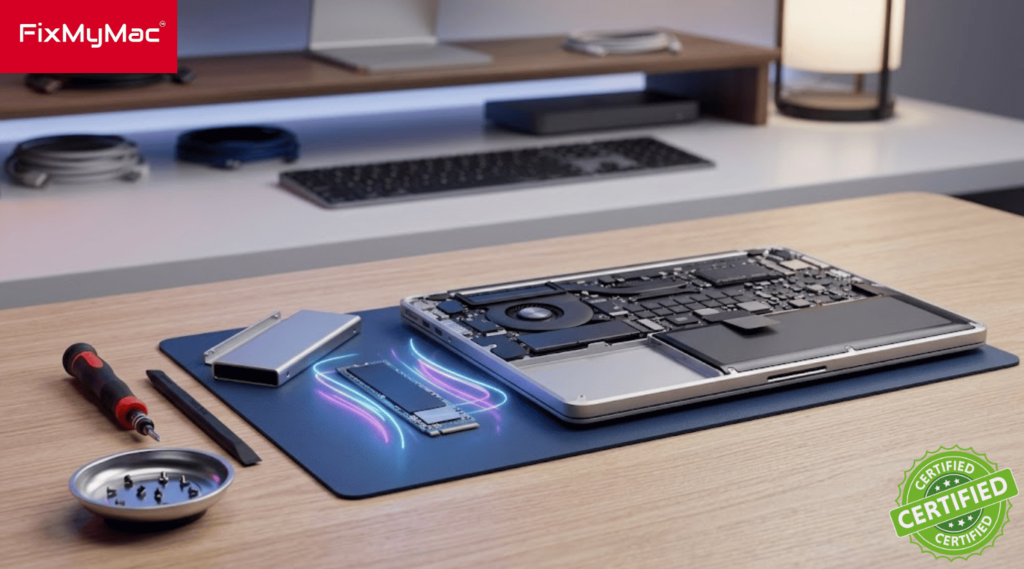

Mac SSD Upgrade: Breathe New Life into Your Slow or Full MacBook
Running out of storage space right when you are in the middle of a big project—or waiting minutes just for your Mac to boot up—is incredibly frustrating. Before you spend thousands of Ringgit on a brand-new computer, there is a much smarter, budget-friendly fix: a professional Mac SSD Upgrade.
Upgrading your solid-state drive (SSD) or replacing an aging, slow hard drive gives your computer an immediate performance boost. You get massive extra storage for all your files, lightning-fast boot times, and snappy app launches without losing your personal data, settings, or applications.
In this guide, we will break down which Mac models can be upgraded, why switching to a high-speed NVMe SSD transforms your daily workflow, and how to safely expand your storage in KL and Selangor.
Signs It Is Time for a Mac SSD Upgrade
Your Mac usually gives you clear warnings when its storage drive is failing or severely choking system performance:
“Your Disk is Almost Full” Warnings: You are constantly forced to delete photos, clear cache files, or move work projects to external hard drives just to free up a few gigabytes.
Painfully Slow Boot & Load Times: Your Mac takes several minutes to turn on, apps bounce repeatedly in the Dock before opening, or you constantly see the spinning rainbow wheel.
System Freezes & Stuttering: macOS slows to a crawl during everyday multitasking because there isn’t enough free storage space for temporary swap memory.
Flashing Question Mark Folder: Your Mac boots up to a folder icon with a question mark, indicating that the system can no longer detect or read your internal storage drive.
Which Mac Models Can Be Upgraded?
Apple’s hardware design has evolved over the years, meaning the upgrade process depends on your specific Mac model:
1. Older Intel MacBooks & iMacs (Upgradable Drive Slots)
Many older MacBook Pro, MacBook Air, Mac Mini, and iMac models feature removable internal drives. Replacing an old mechanical hard drive (HDD) or a small factory SSD with a high-capacity, high-speed NVMe SSD can make your machine up to 5x to 10x faster than the day you bought it.
2. Modern Apple Silicon Macs (M1, M2, M3, M4)
On newer M-series MacBooks where storage chips are soldered directly onto the logic board, traditional drive swapping isn’t possible. However, using specialized micro-soldering techniques or high-speed external desktop NVMe storage integration, expert technicians can safely expand your usable storage capacity.
Whether you are repairing or upgrading your MacBook parts, we’re officially Apple Certified! Read how FixMyMac’s Independent Repair Provider status guarantees genuine parts and expert service
Frequently Asked Questions (FAQ)
How much does a Mac SSD upgrade cost in Malaysia?
Will I lose my files, photos, or apps during the upgrade?
How long does an SSD upgrade take at FixMyMac?
Will an SSD upgrade improve my Mac's battery life?
Why Choose Professional SSD Installation vs DIY?
While upgrading a drive might sound simple, modern Macs require careful handling to avoid permanent hardware damage:
Complete Data Migration
A professional service clones your exact operating system, user accounts, photos, and apps onto the new SSD. You turn on your Mac after the upgrade and pick up right where you left off.
Proprietary Apple Adapters & Connectors
Many Mac models require specialized NVMe adapter cards, thermal pads, and correct firmware formatting (APFS) so the system recognizes the new drive without causing battery drain issues.
Dust & Thermal Paste Cleaning
Opening up your Mac is the perfect time to clean out clogged cooling fans and refresh dried-up CPU thermal paste, keeping your upgraded system running cool and quiet.
Not sure if you Macbook is having a problem? or your device not as the same as the firt time you used it? Just WhatsApp us your problems and we’ll respond instantly to help you out!
The Step-by-Step Mac SSD Upgrade Process
Upgrading your Mac’s internal storage follows a safe, quality-controlled workflow to protect your valuable files:
Diagnostic & Full System Backup
We test your current drive’s health, verify your Mac’s exact model compatibility, and perform a full sector-by-sector clone of your data so nothing is lost.
Hardware Installation & Cleaning
Our technicians safely disassemble your Mac, remove internal dust buildup, install the high-speed NVMe SSD with proper thermal protection, and secure all internal connectors.
OS Optimization & Speed Test
We configure macOS, optimize TRIM support for long-term drive health, restore your data seamlessy, and run read/write speed tests to ensure maximum performance.
Conclusion: Speed Up Your Mac with FixMyMac
You don’t need to throw away a perfectly good Mac or struggle with storage warning pop-ups every single day. A professional storage upgrade is the fastest, most economical way to double your laptop’s lifespan and performance.
If you are looking for a fast, reliable Mac SSD Upgrade in Kuala Lumpur or Selangor, FixMyMac is here to help. Our certified technicians specialize in seamless SSD replacements, storage expansions, and complete data migration for MacBook Air, MacBook Pro, iMac, and Mac Mini models. We offer honest advice, transparent pricing, and data-safe strategies so you get a blazing-fast Mac without any hassle.
Running out of space or tired of a sluggish Mac? Contact FixMyMac today to book your free checkup or get an instant SSD upgrade quote!
FixMyMac Client's Reviews
📍 Location:
Sri Hartamas
Sri Hartamas No. 3-1, Plaza Prismaville, Jalan 19/70a, Desa Sri Hartamas, 50480 Kuala Lumpur, Wilayah Persekutuan Kuala Lumpur
Bukit Jalil
UG – 21, Jalil Link 2, No.5, Jalan Jalil Perkasa 1, Bukit Jalil, 57000 Kuala Lumpur.
📞 Phone: +60149441494
✉ Email: [email protected]
🔗 Website: FixMyMac